How to Use Residential Proxies: A Beginner’s Setup Guide


X2Proxy Editorial Team
Last updated · October 25, 2026 · 12 min read
To use residential proxies, get the proxy host, port, username, and password from your provider, choose a location and session mode, and add those details to a compatible browser or tool. Open an IP checker through that configured connection, verify the exit address and reported location, then check your traffic usage.
This guide walks through residential proxy setup with X2Proxy and uses Dolphin Anty for the browser example. You can apply the same connection details in another compatible client, although its input format and controls may differ.
The goal is one working connection you can verify before adding more locations, profiles, or automation.
Key Takeaways
A residential proxy needs connection details and a compatible client. Buying traffic alone does not configure your browser.
X2Proxy creates a main sub-user by default. Select it in the generator and copy its generated proxy credentials.
Location, protocol, and session mode are separate settings. Choose each for the task and client you will use.
Rotating proxies suit independent requests; sticky proxies provide temporary IP continuity. A sticky session still depends on the exit remaining available.
Verify the connection inside the configured browser or profile. An IP-only response does not confirm its country.
Check bandwidth after the first test. Browsing can consume traffic through images, scripts, and other page resources.
What You Need Before You Start
Have these ready:
Requirement | What to prepare |
|---|---|
X2Proxy account | Access to the dashboard |
Residential traffic | An active traffic balance for the pool you intend to use |
Proxy user | The main sub-user created by default, or another enabled user |
Compatible client | Dolphin Anty for this walkthrough, or another client supporting the chosen protocol and authentication |
Initial location | One country available in your selected pool |
If you need background first, our guide to how residential proxies work explains the network and its limitations.
For this walkthrough, use one endpoint, country-level targeting, HTTP, and a one-hour sticky session. Leave narrower location filters unset. This configuration keeps the first test easy to reproduce; you can change it after verifying the connection.
Before enabling the proxy, open api.ipify.org through your usual connection and privately note the baseline public IPv4 address. You will compare it with the address returned through the proxy later.
How to Set Up Residential Proxies with X2Proxy
Step 1 — Sign In and Add Residential Traffic
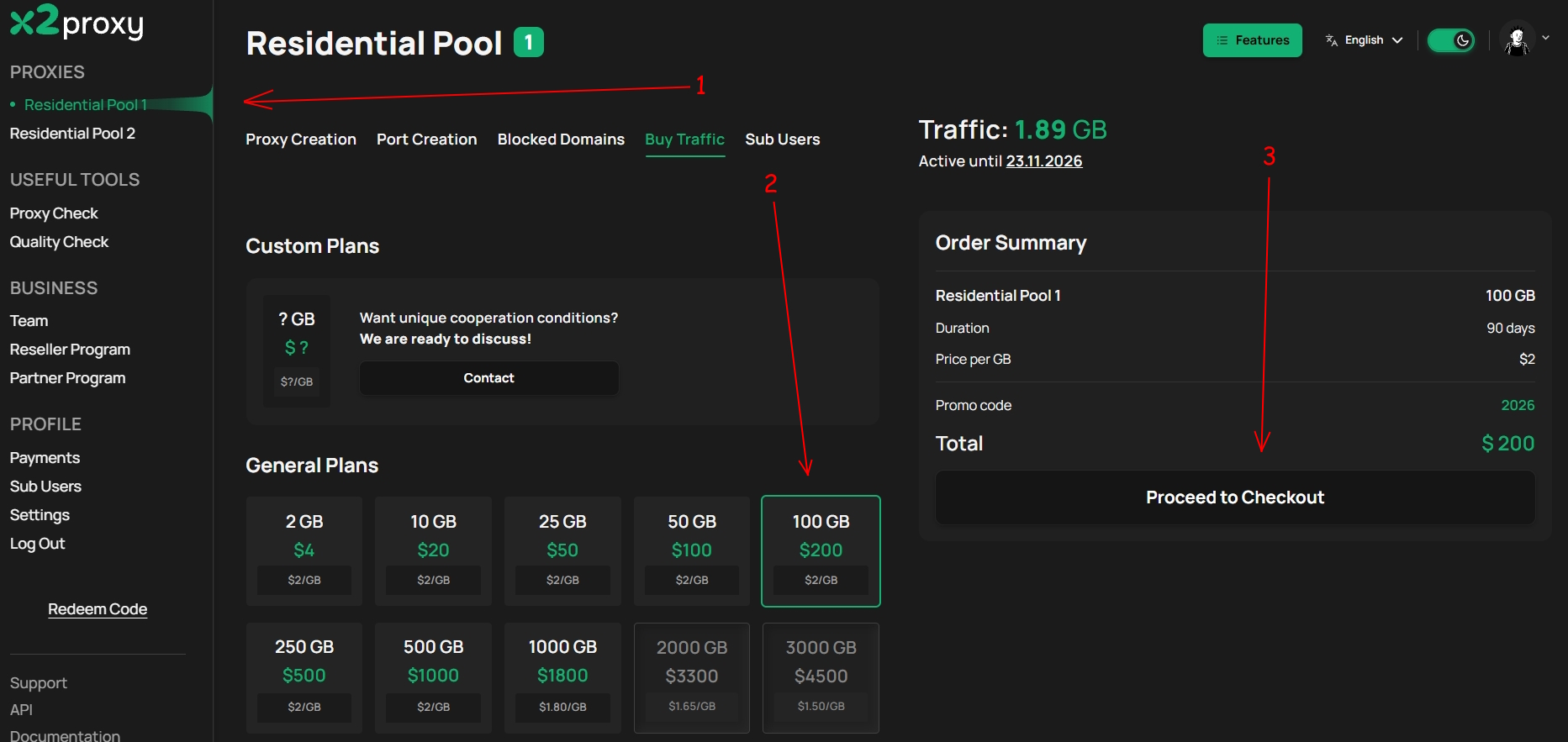
Register or sign in to X2Proxy, then select the residential pool you intend to use from the dashboard sidebar. Keep the same pool throughout the walkthrough so the purchase, generated endpoint, and statistics refer to the same service.
If you need traffic, open Buy Traffic or Deposit Funds in payments tab, choose from General Plan or Custom Plan if you want to discuss a price. Select a package and review the pool, GB amount, duration, and total in the order summary. Continue through checkout and return to the dashboard to confirm that usable traffic is available.
You are purchasing data transfer through the residential network. Generating additional connection strings does not create additional traffic balance.
Step 2 — Select Your Pool and Proxy User
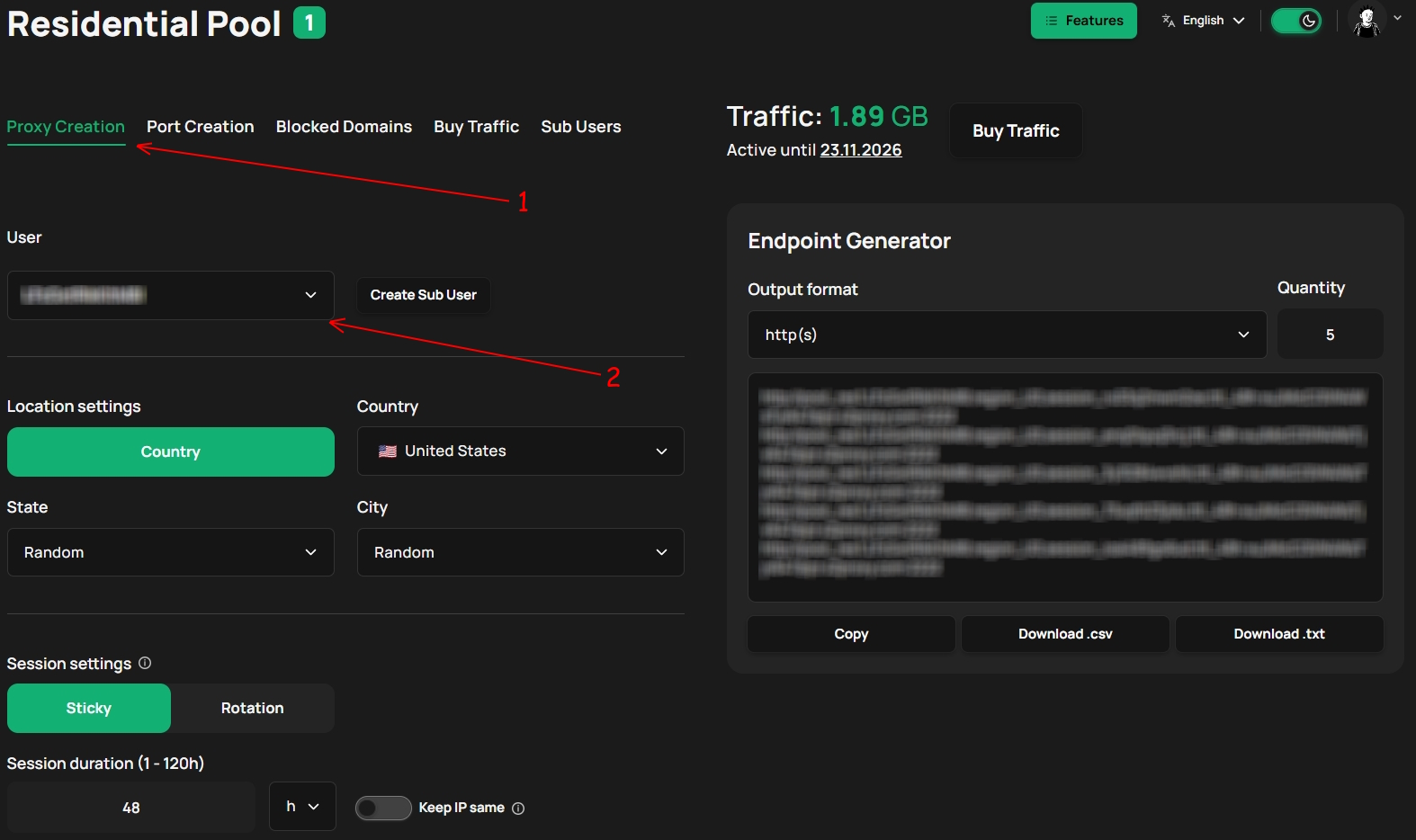
Within the chosen pool, open Proxy Creation. Select the main sub-user from the User control. It is created automatically after registration, so you do not need to create another user for your first connection.
For the sticky-session example, select the pool intended for greater connection continuity. X2Proxy's documentation describes this as the Stable Pool. Match that description to the pool labels in your dashboard.
The proxy user supplies the credentials used to authenticate with the proxy gateway. Copy them from the generated configuration rather than assuming that your website-login password belongs in your browser's proxy settings.
Additional sub-users are useful later for separating projects or managing team access. They are optional for this tutorial.
Step 3 — Choose Location, Session Mode, and Protocol
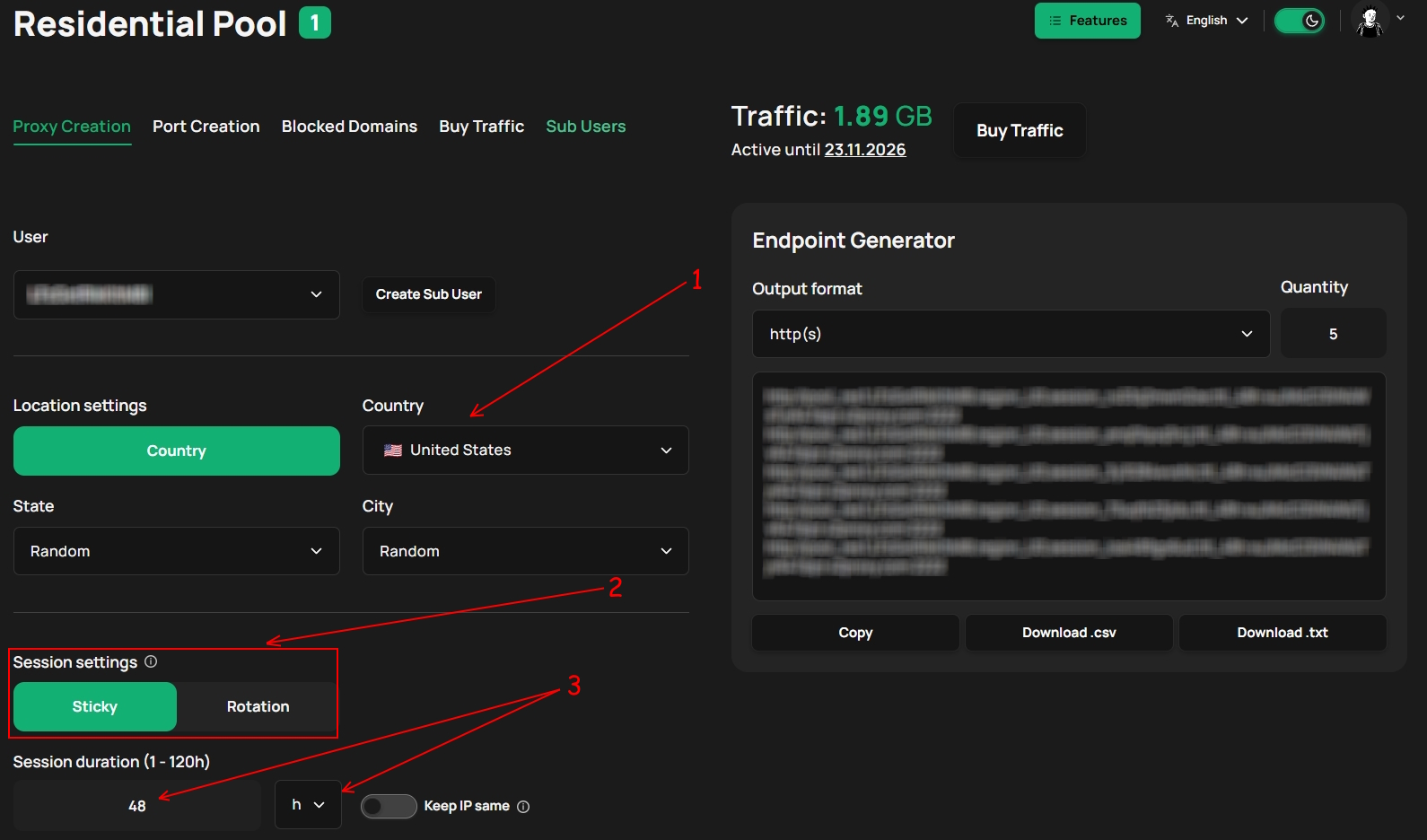
Choose your target Country. For example, select the United States if it is currently available. Leave State, City, and provider/ASN filters unset for the first test.
Adding filters narrows the eligible exits. X2Proxy supports geographic targeting through country, state, and city, or a country-plus-ASN combination. You do not need to configure all of these to establish a connection. See the targeting documentation when your task needs a narrower selection.
Next, choose the session mode:
Session choice | Suitable starting point |
|---|---|
Rotating proxy | Separate public-page checks where each request can use a different exit |
Sticky proxy | Several related checks where retaining one IP helps maintain continuity |
Select Sticky and set Session duration to 1 hour for this browser walkthrough. Sticky proxies attempt to retain an exit for the selected window; an unavailable residential device can end that continuity early. Our rotating vs sticky proxies guide explains the distinction in detail.
Choose the HTTP connection/output format for this example. X2Proxy also supports SOCKS5, but your client must support the corresponding authentication method. Accessing an HTTPS website through an HTTP proxy is different from using an https:// proxy endpoint; do not change the generated scheme simply because the destination uses HTTPS.
Step 4 — Generate and Copy Your Connection Details
In Endpoint Generator, choose the HTTP output format and set Quantity to 1. Copy the resulting connection string. Use Proxy data example to identify its individual fields.
For the standard generated endpoint in this walkthrough:
Field | What to enter in your client |
|---|---|
Protocol | HTTP |
Host / address |
|
Port |
|
Username / login | The complete generated username, including pool and targeting/session parameters |
Password | The selected proxy user's password from the generated details |
A proxy URL follows this general layout:
http://FULL_PROXY_USERNAME:PROXY_PASSWORD@pr.x2proxy.com:2222This is a format template. Replace the uppercase placeholders with your generated values. If your tool accepts a full proxy URL, copying the generated string avoids rebuilding it manually.
Keep the complete username. X2Proxy embeds routing options in it, so entering only the base sub-user login can omit the selected pool, location, or session settings. The proxy-format reference explains the individual parameters.
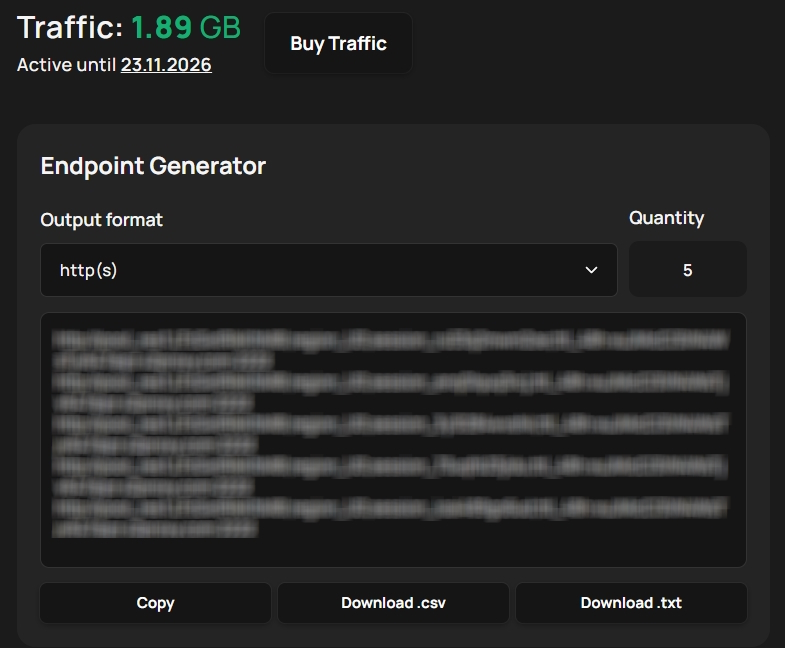
Step 5 — Add the Proxy to Your Browser or Tool
The following example uses Dolphin Anty to assign the proxy to one browser profile. A separate profile also makes it easier to identify which window you should use for testing.
Open Dolphin Anty and choose Create profile.
Give it a recognizable name, such as
X2Proxy Setup Test.In the proxy section, select New Proxy.
Paste the generated HTTP proxy URL. Dolphin Anty documents support for the
login:password@host:portformat with a protocol prefix.Click the arrows at the right of the proxy input to check connectivity. Review the result, then create/save the profile.
Find the profile in the list and click Start.
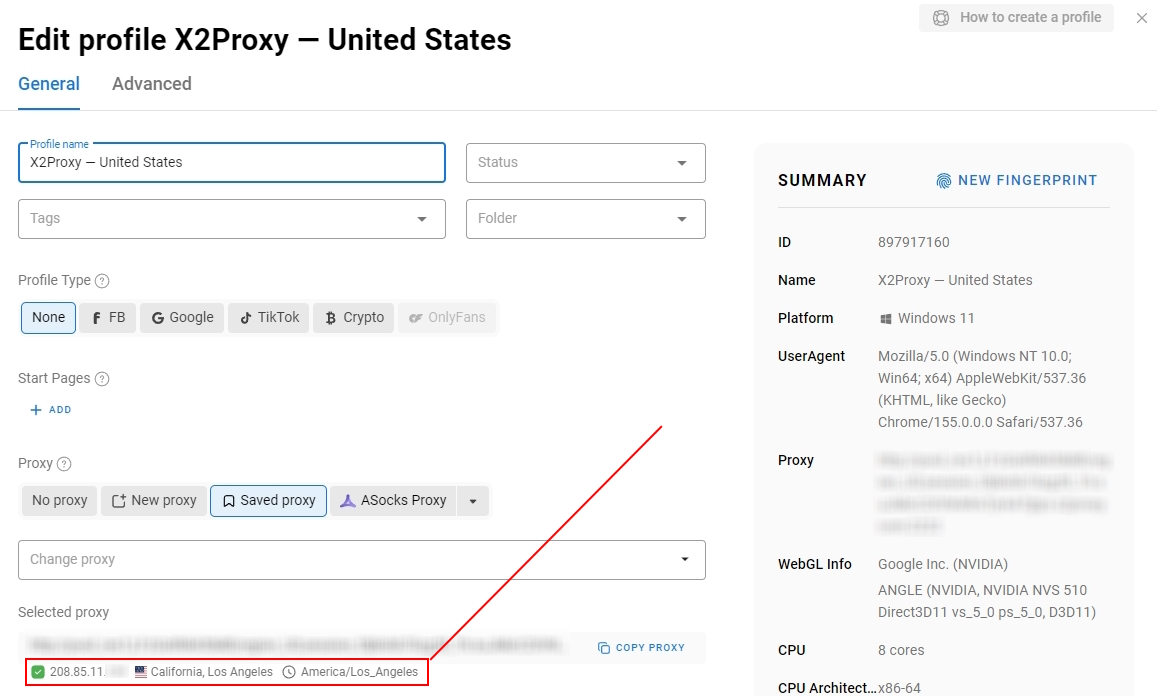
The official Dolphin Anty instructions also describe adding a proxy through an existing profile. Controls may move between versions; match them to the current application.
If another tool uses separate fields, apply the mapping from Step 4. Configuring one application does not automatically configure other browsers or scripts on your computer. Each client needs the intended proxy settings.
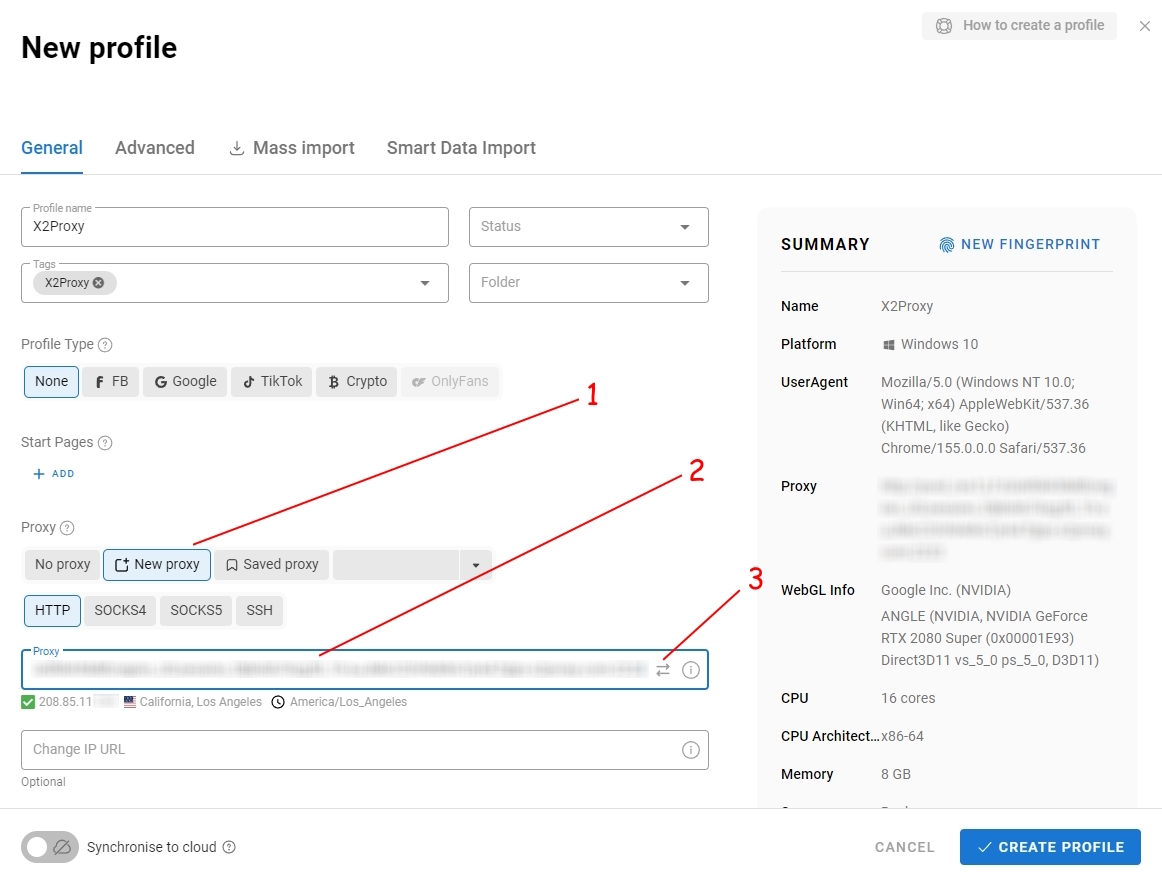
Step 6 — Verify Your Exit IP and Location
Inside the newly launched profile, open api.ipify.org. Compare its response with the baseline address you noted earlier. The address should represent the proxy exit rather than your usual connection.
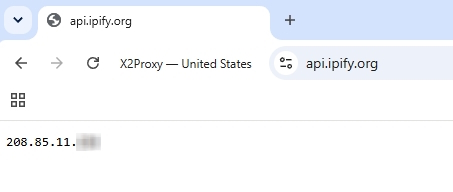
To check the reported country and network, open an IP lookup such as IPinfo's IP checker in that same profile. Confirm:
Exit IP: the request is using the intended connection.
Country: the lookup reports the selected market.
Network/ASN: the network information is consistent with the expected exit.
An IP-only endpoint does not verify location. IP geolocation also uses databases rather than device GPS, so treat city-level information as reported location, not a precise physical address.
With the same active sticky session, a few fresh checks should retain the exit while it remains available. With rotating proxies, separate requests may use different addresses. Do not treat one repeated IP as conclusive proof that rotation is broken.
Optional: Check the Connection with cURL
For a command-line check, use the complete generated username and proxy password. In Bash on macOS/Linux:
curl --proxy 'http://pr.x2proxy.com:2222' --proxy-user 'FULL_PROXY_USERNAME:PROXY_PASSWORD' 'https://api.ipify.org'In Windows PowerShell, use curl.exe with the same arguments. The quotes keep semicolon-separated username parameters together. Replace the placeholders locally and keep the filled-in command private; for recurring automation, store credentials outside shared scripts and shell history.
The returned address belongs to this command's connection. A successful terminal test does not prove that another application has applied the proxy.
Step 7 — Check Traffic Usage
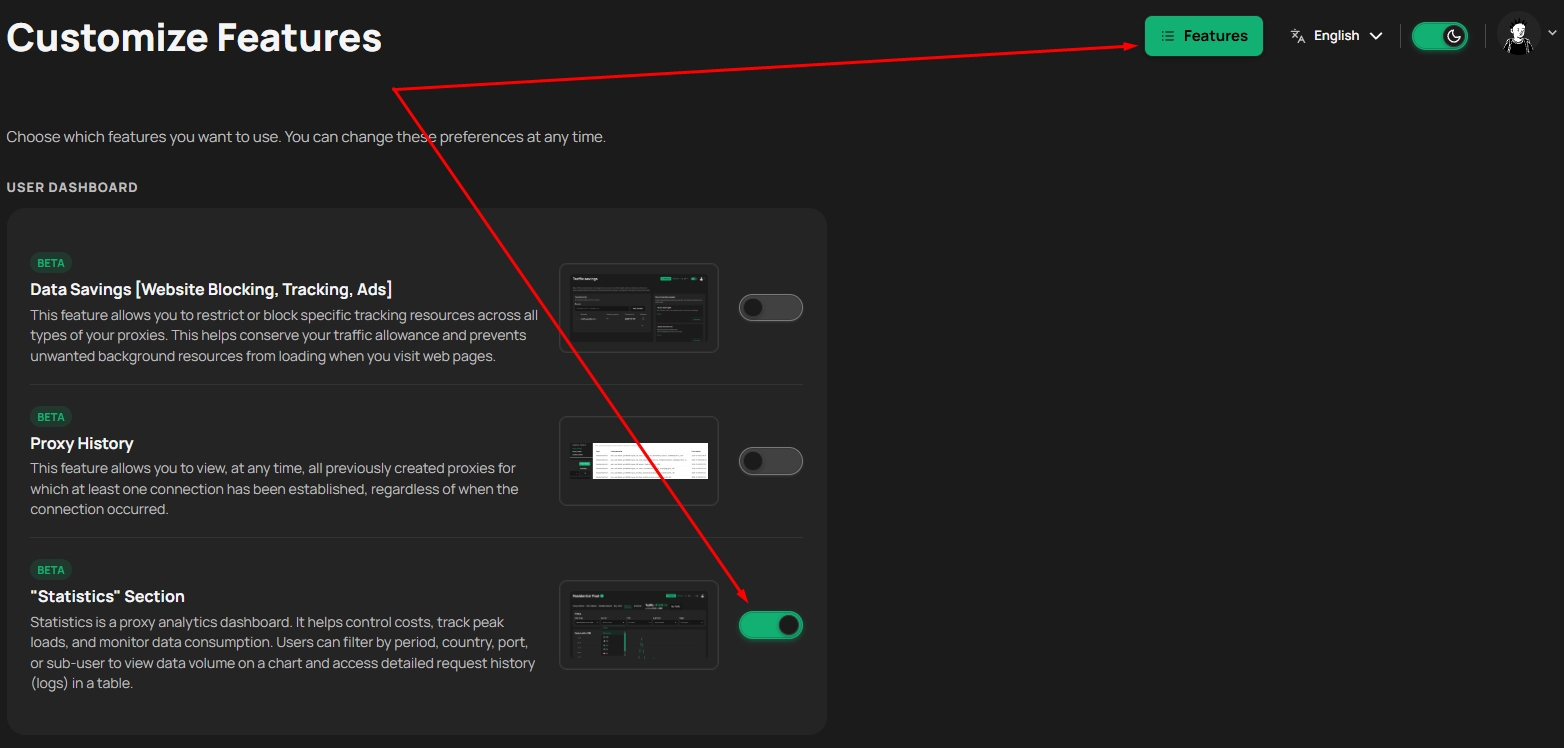
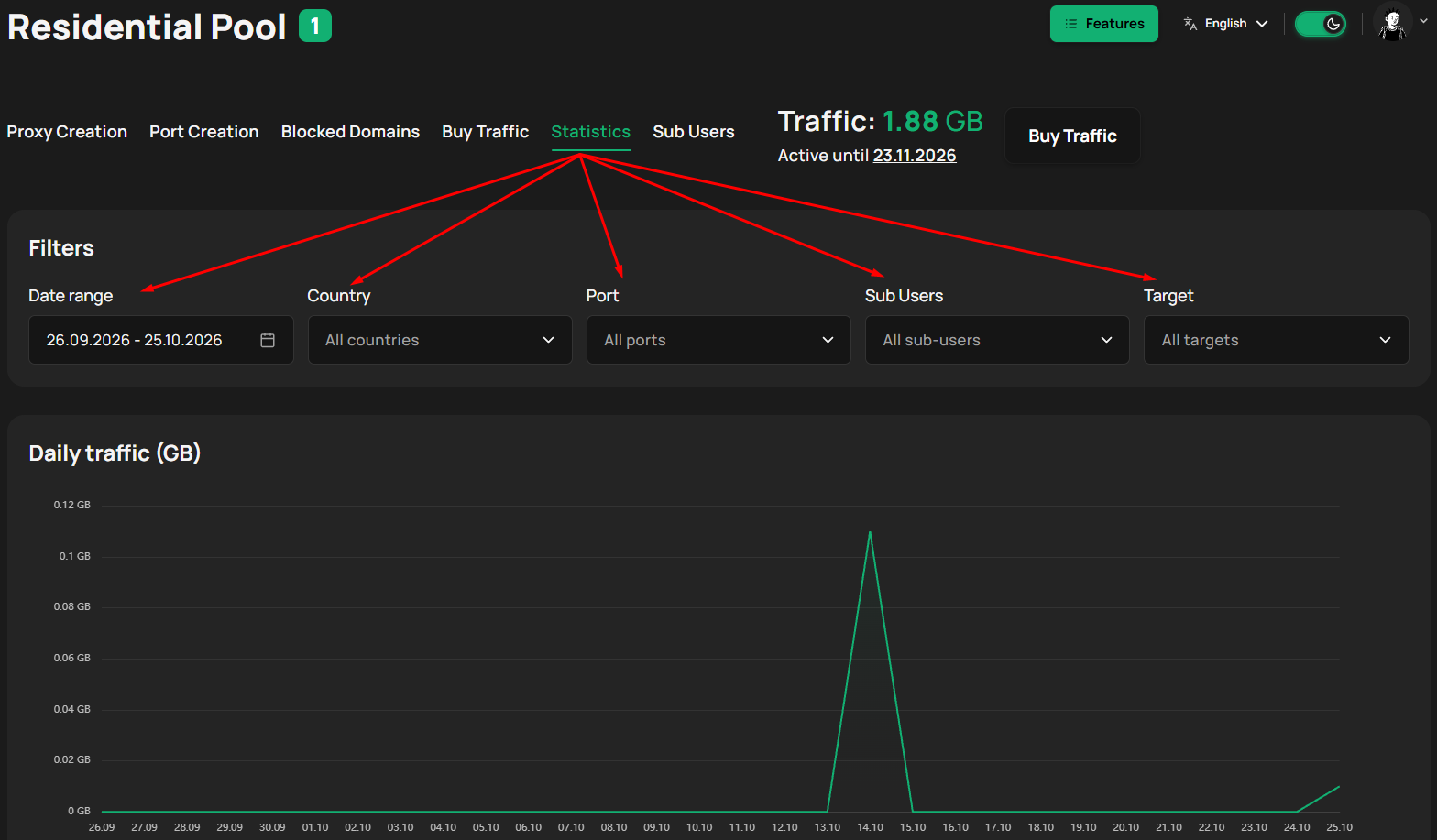
Return to the same pool in X2Proxy and open Statistics -> click Features button in the top right corner and toggle on Statistics feature. Select a date range covering your test, then review the traffic chart and usage entries. Check any active filters if the expected activity is missing.
X2Proxy counts data transferred through the proxy, including inbound responses and outbound requests. A browser visit can include HTML, images, scripts, and background requests, so it can use more bandwidth than a small IP-only check. The traffic documentation explains accounting and balance validity.
Start with a few pages, inspect usage, and then decide how many profiles or tasks to add. Close the test profile when finished to stop its browsing activity.
Common Residential Proxy Setup Problems
Check the connection in order: client settings, credentials, pool access, available traffic, and targeting. Change one setting at a time so you can identify what fixed the issue.
Symptom | What to check first |
|---|---|
Authentication fails or login keeps reappearing | Recopy the complete proxy username and password; confirm the selected sub-user is enabled |
Connection is refused or times out | Verify the host, port, protocol, local connectivity, and available traffic |
Your usual IP appears | Confirm that you opened the configured profile and saved its proxy settings; check client bypass rules |
Country differs from the selected one | Recheck generated targeting parameters and compare the same exit across location databases |
Sticky IP changes unexpectedly | Check session duration, session identifiers, resets, and exit-device availability |
Test works, then traffic stops | Check the main balance and any sub-user traffic cap |
IP checker loads, but one website fails | Check target availability, provider resource restrictions, and the website's response |
For X2Proxy, unavailable exits in a requested country cause a failed connection rather than an automatic fallback to another country. Revisit location availability and simplify narrow filters before regenerating the configuration.
Your First Connection Checklist
Before expanding the setup, confirm that:
the selected residential pool has usable traffic;
the intended proxy user is selected and enabled;
the client uses the complete generated credentials and correct protocol;
country and session settings match your task;
the actual browser/profile returns the expected exit information;
the corresponding traffic can be reviewed in Statistics.
Once these checks pass, change one parameter at a time. For example, keep the client configuration and switch to a rotating session for independent page checks, or narrow the country selection when a project requires it.
Frequently Asked Questions
How Do Residential Proxies Work?
A residential proxy forwards your requests through an IP associated with a consumer internet connection. The destination sees that exit address. Your client connects using the provider's gateway and credentials. Our residential proxy guide explains routing, sourcing, and limitations in more detail.
What Information Do I Need to Set Up a Residential Proxy?
You need a proxy host, port, complete username, password, and compatible protocol. You also need available traffic and access to the selected pool. Copy the generated details: the username can include settings beyond your base login.
Can I Use Residential Proxies in a Regular Browser?
Yes, provided the browser or its connection settings support your proxy protocol and authentication. A special antidetect browser is not required for every use case. Dolphin Anty is this guide's example because it assigns connections to individual profiles; other clients have their own configuration steps.
Should I Choose HTTP or SOCKS5 for My First Setup?
HTTP is a practical starting point for this browser walkthrough. Choose SOCKS5 when your client and task require it and support the provider's authentication. The protocol alone does not determine whether the exit is residential. Keep the generated protocol and client configuration consistent.
How Do I Check Whether My Residential Proxy Is Working?
Open an IP checker inside the configured client and compare the exit with your baseline connection. Use a location lookup to check the country and network as well. Confirming a proxy in a dashboard or terminal does not establish that another browser is using it.
Why Does My Proxy Username Contain Location or Session Parameters?
X2Proxy uses the username to tell its gateway which pool, location, and session settings to apply. These parameters belong to proxy authentication, not the username for a destination website. Preserve the generated string when copying it into your client.
Are Residential Proxies Illegal?
Residential proxy use can be lawful, but the answer depends on jurisdiction, IP sourcing, and what you do through the connection. A proxy does not authorize access to restricted accounts or data. U.S. DOJ guidance on computer access illustrates why authorization matters; it is not a worldwide rule for proxy use.
Can Residential Proxies Be Detected?
Yes. A consumer-network IP does not guarantee invisibility. IP intelligence services can identify proxy-related activity, while websites can assess address reputation, request patterns, and client signals. A successful IP check confirms the observed route, not immunity from detection or blocking.
What Are the Risks of Using a Residential Proxy?
Practical risks include untrusted providers, exposed credentials, unexpected bandwidth use, interruptions, and a client silently using the wrong connection. Check sourcing practices, keep credentials private, verify routing in the actual application, and review usage before increasing activity.